When running Google Ads campaigns, tracking performance correctly is non-negotiable.
But many marketers get confused between:
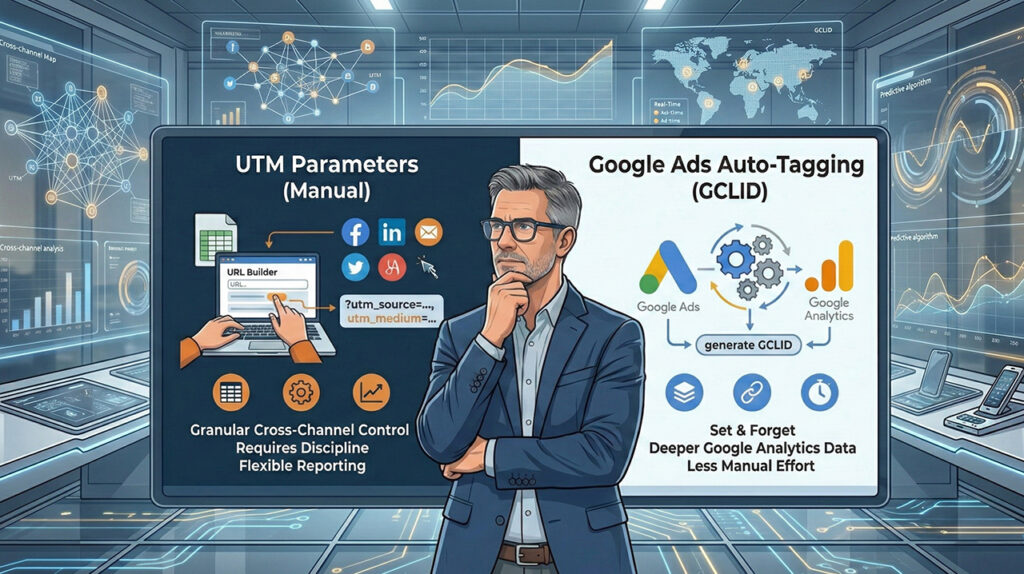
- Manual UTM parameters
- Google Ads Auto-Tagging
Should you use one? Both? Or neither?
In this guide, we’ll break down the difference, when to use each, and the smartest way to structure tracking in 2026.
What Is Auto-Tagging in Google Ads?
Auto-tagging is a built-in feature in Google Ads that automatically adds a parameter called:
?gclid=XXXXXXXX
to your landing page URL.
This gclid (Google Click Identifier) allows Google Analytics (especially GA4) to automatically import:
- Campaign name
- Ad group
- Keyword
- Device
- Match type
- Network
- Cost data
Without manually adding UTM parameters.
✅ Pros of Auto-Tagging
- Fully automatic
- No naming mistakes
- Imports cost data
- Works perfectly inside GA4
❌ Cons
- Only works well with Google Ads
- Doesn’t help external tools like CRM or email platforms
- Less readable URLs
What Are Manual UTM Parameters?
UTM parameters are custom tracking tags added manually to a URL.
Example:
<https://example.com/?utm_source=google&utm_medium=cpc&utm_campaign=spring_sale>
These parameters allow you to track traffic across platforms like:
- Google Analytics
- Meta Ads
- Email marketing
- CRM tools
- Marketing dashboards
If you’re new to structured campaign naming, read our detailed
You can also instantly generate properly formatted links using our
Key Differences: UTM vs Auto-Tagging
| Feature | Auto-Tagging | Manual UTM |
|---|---|---|
| Setup | Automatic | Manual |
| Works only with Google Ads | Yes | No |
| Works with all platforms | No | Yes |
| Imports cost data in GA4 | Yes | No |
| Naming control | Limited | Full control |
| Human-readable | No | Yes |
When Should You Use Auto-Tagging?
Use auto-tagging if:
- You only use Google Ads
- You rely mainly on GA4
- You want detailed keyword-level tracking
- You don’t want to manage manual UTM naming
For most advertisers, auto-tagging should always be enabled.
If you want a full setup breakdown, read:
👉 UTM for Google Ads Setup Guide
When Should You Use Manual UTM Parameters?
Use manual UTMs when:
- You run multi-channel campaigns
- You use CRM tracking
- You send traffic to third-party tools
- You need consistent naming across platforms
- You want a readable campaign structure
Manual UTMs give you control.
To keep everything structured, generate your campaign links using our
The Smartest Approach (Best Practice)
The most professional setup in 2026 is:
✅ Enable Auto-Tagging
AND
✅ Add Structured Manual UTM Parameters
Why?
Because:
- gclid imports cost & ad-level data
- UTMs maintain campaign consistency across platforms
- You get both precision and flexibility
This is called a hybrid tracking strategy.
How to Enable Auto-Tagging in Google Ads
- Go to Google Ads
- Click Settings
- Account Settings
- Enable “Auto-tagging”
Make sure this is always ON.
How to Track UTM Performance in GA4
After implementing UTMs or auto-tagging:
- Go to GA4
- Reports → Acquisition → Traffic Acquisition
- Filter by Session source/medium
- Analyze campaign performance
For a detailed walkthrough, read:
👉 How to Track UTM in GA4 (Step-by-Step Guide)
Common Mistakes to Avoid
❌ Disabling auto-tagging
❌ Mixing uppercase and lowercase UTMs
❌ Using UTMs for internal links
❌ Not documenting campaign naming
❌ Changing naming conventions mid-campaign
Final Verdict
If you’re serious about marketing performance:
- Use Auto-Tagging for precision
- Use Manual UTMs for structure
- Use both for complete tracking clarity
Tracking is not about tools.
It’s about consistency.